

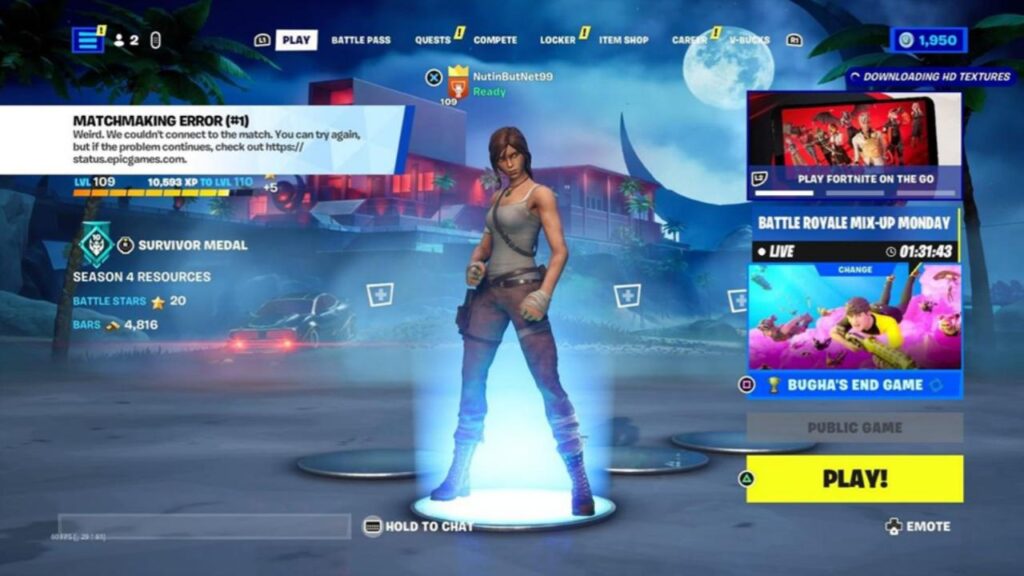
It certainly can be extremely frustrating if you’re having problems and find yourself stuck in a ‘Fortnite‘ lobby with Matchmaking Error #1. This error almost always occurs when there is a failure to connect to the server, although initially, everything looks fine.
Fortunately, there are several simple things that you can try or check to fix the problem. So if you have been waiting to jump to the island, thanks to this error, here’s everything you need to know about this error and how to fix it easily.
What Causes Matchmaking Error #1 In ‘Fortnite’?
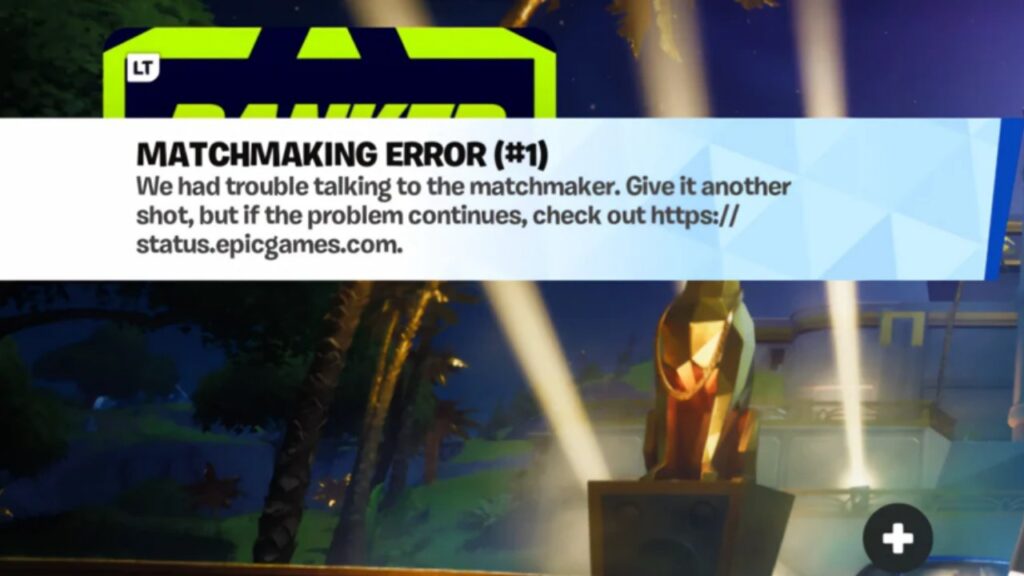
Matchmaking Error #1 is caused primarily by either server-side issues, such as maintenance events performed by Epic Games, or problems on the player’s end, including unstable connections, incorrect matchmaking region settings, corrupted game files, and leftover codes from custom games.
Related: When Is Ben 10 Coming To Fortnite?
During peak traffic times or shortly after a new season is released, servers may be overloaded, causing the ‘Fortnite’ Matchmaking system to return an error code when a player attempts to join a new match. The Matchmaking Error #1 can also occur when players switch from custom games to ranked or public playlist matches.
Fixing Matchmaking Error #1 In ‘Fortnite’
1. Check the Server
The first thing to do is to verify whether or not the Epic Games Servers are currently operational using either the Epic Games Server Status or Fortnite’s official Status Account on X. If the matchmaking service is down or under maintenance, there is nothing else you can do but wait until the servers are operational again.
2. Restart the game
If the servers are, however, up and running, first restart Fortnite from the home screen completely and restart your Wi-Fi router. Restarting both of these devices will remove any minor connectivity problems to prevent you from successfully matching using the matchmaking service. Second, follow the instructions provided in the Settings Menu to change your matchmaking region, i.e., switch from Auto to Nearby or vice-versa. and resubmit a new request to join a match.
3. Delete Matching codes
When playing a custom game previously, please delete your matching codes to restart the game. Regarding squad difficulties, all party members need to “unready,” and the party leader must hit “ready” first. Additionally, you may want to turn ‘Fill’ on/off or briefly join another party before queuing solo again as a possible solution.
4. Verify Files
Also, PC players should confirm their game files via the Epic Games Launcher if they have corrupt/missing files. If problems still exist, you might find your connection will be more stable if you switch to either Google DNS or another public DNS, because you might be experiencing connection issues from either a bad internet connection or server issues. You might need to either reinstall Fortnite or create a bug report with Epic Games so that they can try to replicate your issue.
In Case You Missed: Kai Cenat And Gigi Alayah Breakup Scandal Explained
After completing the above steps, you should no longer receive Matchmaking Error #1 in ‘Fortnite‘ and will be able to match into games without being re-stuck in the lobby.
